Introduction
Managing important documents is an essential part of everyday life. Students need marksheets and certificates for admissions, job seekers require educational records for employment applications, and citizens may need identity or vehicle-related documents for various services.
Carrying physical copies of every document can sometimes be inconvenient. DigiLocker provides a digital solution that allows Indian citizens to access, store, and share documents electronically.
DigiLocker is a flagship initiative of the Ministry of Electronics and Information Technology (MeitY), Government of India, under the Digital India programme. It is designed to provide citizens with access to authentic digital documents through a secure cloud-based platform.
In this guide, DigiStudyLab.in explains what DigiLocker is, how to create an account, how to access digital documents, how students can retrieve marksheets, and how to use the platform safely.
What Is DigiLocker?
DigiLocker is a digital document wallet that enables citizens to access and manage electronic documents issued by participating government departments, educational institutions, and other registered organizations.
The platform provides two important document facilities:
- Issued Documents: Documents made available electronically by registered issuing authorities.
- Uploaded Documents: Personal files uploaded by users for digital storage.
Issued documents can be accessed, shared, and verified through the DigiLocker ecosystem, subject to the relevant service and document availability.
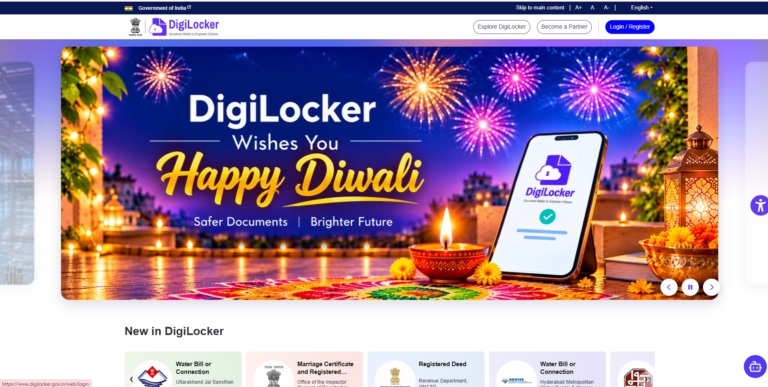
The platform can be accessed through its official website or mobile application.
Official website: https://www.digilocker.gov.in/
Benefits of Using DigiLocker
DigiLocker offers several advantages for students, job seekers, and citizens.
1. Access Documents Anytime
Users can access their available digital documents through DigiLocker when they have an internet connection and can authenticate their account.
2. Reduce the Need for Physical Copies
Digitally issued documents can help reduce the need to carry or repeatedly submit physical copies, wherever digital documents are accepted.
3. Access Educational Certificates
Students may be able to retrieve academic documents issued by participating boards, universities, and educational institutions.
4. Secure Document Sharing
DigiLocker supports consent-based sharing of documents with participating organizations and requesters.
5. Convenient Document Management
Users can access their issued documents and manage files uploaded to their DigiLocker account.
6. Access Government-Related Documents
Depending on the issuing authority and integration, users may be able to access documents such as driving licences, vehicle registration certificates, and other government-issued records.
Documents Available Through DigiLocker
The documents available in DigiLocker depend on the issuing authority and the services integrated with the platform.
Some document categories include:
| Document category | Examples |
|---|---|
| Educational Documents | Marksheet, passing certificate, academic awards |
| Identity Documents | Digital Aadhaar, where available |
| Transport Documents | Driving licence, vehicle registration certificate |
| Government Certificates | Documents issued by participating departments |
| Personal Files | Uploaded PDF, JPEG, and PNG documents |
Not every document is automatically available to every user. Availability depends on whether the relevant authority has issued or integrated the document into DigiLocker.
How to Create a DigiLocker Account
Creating a DigiLocker account allows users to access the platform’s digital document facilities.
Step 1: Visit the Official DigiLocker Website
Open the official website:
https://www.digilocker.gov.in/
Choose the Sign Up or account creation option.
Step 2: Enter Your Registration Details
Follow the registration instructions displayed on the official portal.
Depending on the registration flow, you may be asked to provide details such as:
- Full name
- Date of birth
- Gender
- Mobile number
- Email address
- Aadhaar details, where required for verification
Enter accurate information that matches your official records.
Step 3: Verify Your Mobile Number
Complete the mobile number verification process using the OTP sent to your registered mobile number.
Never share your OTP with another person.
Step 4: Set Your Security PIN
Follow the instructions to create your DigiLocker security PIN.
Choose a PIN that is difficult for others to guess. Do not share it with anyone.
Step 5: Complete Registration
Once the required verification steps are completed, you can access your DigiLocker account.
Some document services may require additional identity verification or Aadhaar authentication.
How to Login to DigiLocker
If you already have a DigiLocker account, follow these steps:
- Visit https://www.digilocker.gov.in/
- Select the Sign In option.
- Enter your registered mobile number or another supported login identifier.
- Complete the authentication process.
- Enter your security PIN or OTP as requested.
- Access your DigiLocker dashboard.
The available login options may vary depending on the account and authentication method.
How to Download a Marksheet from DigiLocker
DigiLocker can help students access academic documents issued by participating educational boards and institutions.
Step 1: Login to DigiLocker
Visit the official DigiLocker website and sign in to your account.
Step 2: Open the Issued Documents Section
Navigate to the Issued Documents section or the document discovery option available on the dashboard.
Step 3: Search for Your Educational Board
Select the relevant educational board, university, or institution.
For example, students may search for Central Board of Secondary Education (CBSE) if their academic document is issued by CBSE.
Step 4: Select the Required Document
Choose the document you want to retrieve.
Examples include:
- Class 10 marksheet
- Class 12 marksheet
- Passing certificate
- Migration certificate
- Other academic awards, where available
Step 5: Enter the Required Information
Depending on the issuing authority, you may need to provide details such as:
- Roll number
- Year of passing
- Examination details
Enter the information accurately.
Step 6: Fetch the Document
Submit the required details and follow the instructions displayed on the screen.
If the document is available, it may be added to your Issued Documents section.
Step 7: View or Download Your Marksheet
Open the retrieved document and use the available view, download, or share option.
Important: Academic document availability depends on the issuing board or institution. If your marksheet is not available, check the relevant institution’s official website for alternative document access instructions.
How to Access DigiLocker Through the Mobile App
DigiLocker is also available through its official mobile application.
Users can:
- Register or sign in to their account.
- Access available issued documents.
- Manage uploaded files.
- Retrieve eligible academic certificates.
- Share documents using supported facilities.
For safety, download the application only through official app stores and verify that the application is published by the authorized DigiLocker service provider.
Official website: https://www.digilocker.gov.in/
What Is the Difference Between Issued Documents and Uploaded Documents?
This is an important distinction when using DigiLocker.
| Issued Documents | Uploaded Documents |
|---|---|
| Provided electronically by a registered issuing authority | Uploaded directly by the user |
| Retrieved from the issuer’s integrated system | Stored as a user-uploaded file |
| May include issuer-based verification features | Uploading alone does not establish official authenticity |
| Can be used for supported digital verification | Acceptance depends on the document and receiving organization |
For important applications, users should prefer authentic digitally issued documents whenever they are available and accepted.
Are DigiLocker Documents Valid for Government Jobs and Admissions?
DigiLocker provides access to authentic digital documents issued by participating authorities.
Digitally issued documents available through DigiLocker have legal recognition under the applicable provisions of Indian law, including the Information Technology Act, 2000, subject to the relevant rules and requirements.
However, acceptance requirements can vary depending on the receiving organization, recruitment authority, educational institution, or application process.
Before submitting a document for a government job, college admission, examination, or other official purpose:
- Read the official application instructions.
- Check whether digitally issued documents are accepted.
- Confirm that the document is issued by the appropriate authority.
- Follow any additional document verification requirements.
Do not assume that every file uploaded to DigiLocker automatically has the same legal status as an officially issued digital document.
Is DigiLocker Safe to Use?
DigiLocker is an official Government of India digital document platform designed with security and privacy features.
Its official information describes authentication, secure communication, and consent-based document sharing.
Users should nevertheless follow basic digital security practices.
DigiLocker Safety Tips
- Use only the official DigiLocker website or application.
- Never share your OTP or security PIN.
- Avoid logging in through suspicious links received by SMS, email, or social media.
- Do not share your Aadhaar information unnecessarily.
- Log out when using a shared or public computer.
- Keep your mobile device and applications updated.
- Review document-sharing requests before approving them.
DigiLocker support should be contacted through the official platform if you encounter account-related issues.
Common DigiLocker Problems and Solutions
1. OTP Not Received
If you do not receive an OTP:
- Check whether your mobile number is correct.
- Ensure that your phone can receive SMS messages.
- Wait briefly before requesting another OTP.
- Try again later if the service is temporarily unavailable.
2. Aadhaar Already Registered
If the system indicates that your Aadhaar is already registered, you may already have an existing DigiLocker account.
Try accessing your existing account through the supported login or account-recovery options rather than creating another account unnecessarily.
3. Marksheet Not Available
A marksheet may not appear if:
- The issuing institution has not integrated the document.
- The document has not yet been published electronically.
- The details entered do not match the issuing authority’s records.
Check the official educational board or institution for further assistance.
4. Incorrect Personal Details
If your personal information does not match your official records, verify the details with the appropriate issuing authority.
DigiLocker cannot independently correct information maintained by another government department.
5. Unable to Login
If you cannot log in:
- Check your login details.
- Follow the official account-recovery instructions.
- Confirm that you are using the registered mobile number or supported login identifier.
- Contact DigiLocker support if the issue continues.
Frequently Asked Questions About DigiLocker
1. Is DigiLocker free to use?
DigiLocker provides core digital document services to citizens without a general access fee. Refer to its official terms for applicable service details.
2. Can students download their Class 10 and Class 12 marksheets from DigiLocker?
Students may be able to retrieve their Class 10 and Class 12 marksheets if the relevant educational board has made the documents available through DigiLocker.
3. Is Aadhaar mandatory for DigiLocker?
Registration and verification requirements depend on the available account creation flow and the services you wish to access. Some verified document services require Aadhaar-based verification.
4. Can I use DigiLocker for government job applications?
You may use authentic digitally issued documents where the relevant recruitment authority accepts them. Always read the official recruitment notification.
5. Can I upload my own certificates to DigiLocker?
Yes. DigiLocker provides a facility for users to upload personal files. However, user-uploaded documents should not be confused with documents issued and verified electronically by an authorized issuing authority.
6. Can I access DigiLocker on my mobile phone?
Yes. DigiLocker can be accessed through its official website and mobile application.
7. What should I do if my document is missing?
Check whether the relevant issuing authority is integrated with DigiLocker and whether your document has been issued electronically. You may need to contact the institution or department.
8. Can DigiLocker documents be shared electronically?
Yes. DigiLocker supports document sharing through its available facilities, subject to user consent and the participating organization.
Conclusion
DigiLocker is an important digital initiative that helps Indian citizens access and manage authentic electronic documents conveniently.
For students, it can provide access to academic marksheets and certificates. For job seekers, it can help organize educational records. For citizens, it can provide access to various government-issued documents through a digital platform.
By understanding the registration process, document retrieval facilities, and security precautions, users can make better use of DigiLocker.
DigiStudyLab.in aims to make educational information and useful digital services easier to understand. We encourage readers to use official government portals and verify the latest instructions before submitting documents for any official purpose.
Visit the official DigiLocker portal:
https://www.digilocker.gov.in/
Explore more Government Services & Portals guides on DigiStudyLab.in.
Official References
- DigiLocker Official Website — https://www.digilocker.gov.in/
- DigiLocker Official FAQ — https://www.digilocker.gov.in/web/about/faq
- DigiLocker National Academic Depository — https://nad.digilocker.gov.in/students
- Ministry of Electronics and Information Technology — https://www.meity.gov.in/
- Digital India — https://www.digitalindia.gov.in/
Registration screens, document availability, and portal procedures may change. Readers should refer to the official DigiLocker portal for the latest instructions.